What Are the Most Common Printer Errors and How Can You Fix Them?
Introduction
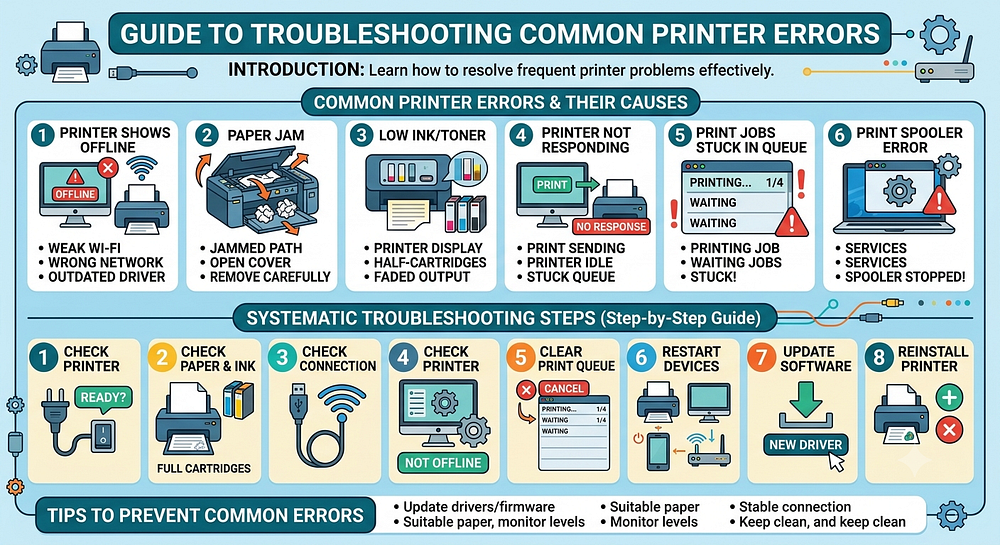
Printers are useful devices for homes, schools, and offices, but they can sometimes stop working because of common errors. You may see an error message on your computer, notice that the printer is Offline, find documents stuck in the print queue, or discover that the printer is not responding at all.
Printer errors can be caused by simple issues such as a paper jam or empty ink cartridge, but they can also result from connection problems, outdated drivers, incorrect settings, or communication failures between the computer and printer.
The good news is that many common printer errors can be resolved with basic troubleshooting. This guide explains the most frequent printer problems, what causes them, and how you can troubleshoot them.
What Is the Most Common Printer Error?
There is no single error that affects every printer model. However, Offline, paper jam, low ink or toner, connection, and print queue errors are among the most common problems users encounter.
The exact message can vary depending on the printer manufacturer, model, operating system, and connection method.
Before troubleshooting, check the exact message displayed on the printer or computer. This can help you identify the appropriate solution.
Printer Shows Offline
One of the most common printer problems is an Offline status.
Your printer may be powered on but still appear Offline on your computer. This usually means that the computer is unable to communicate properly with the printer.
Possible causes include:
Weak Wi-Fi connection
Printer connected to another network
Computer connected to a different network
Incorrect printer settings
Outdated printer driver
Temporary communication problem
Printer selected incorrectly
Network configuration problem
How to Fix an Offline Printer
Start by checking that the printer and computer are connected to the appropriate network.
Then restart the printer, computer, and router if the printer is connected wirelessly.
Open your computer's printer settings and make sure the correct printer is selected. Also check that Use Printer Offline is not enabled.
If the problem continues, update the printer driver and reinstall the printer if necessary.
Paper Jam Error
A paper jam is another common printer error.
The printer may stop printing and display a warning when paper becomes stuck inside the paper path.
How to Fix a Paper Jam
Turn off the printer before attempting to remove jammed paper when appropriate.
Carefully inspect:
Paper trays
Rear access areas
Output areas
Internal paper paths
Remove the paper gently to avoid tearing it.
Check for small pieces of paper that may remain inside the printer. Once the paper path is clear, close the printer covers properly and restart the device.
Avoid forcing paper out because doing so can damage internal printer components.
Low Ink or Toner Error
A printer may display a low ink or toner warning when a cartridge is nearly empty.
Depending on the printer model, low supplies may cause faded output, incomplete documents, or printing problems.
How to Resolve the Problem
Check the ink or toner levels through the printer's display or printer software.
If a cartridge is empty or no longer producing acceptable output, replace it with a compatible cartridge suitable for your printer model.
After replacement, allow the printer to complete its cartridge initialization process before printing.
Printer Not Responding
Sometimes a printer does not respond when you send a document.
You may click Print, but nothing happens.
Possible causes include:
Printer not powered on
Connection problem
Stuck print queue
Incorrect printer selected
Driver problem
Print Spooler issue
Temporary software error
Troubleshooting Steps
First check that the printer is powered on and ready.
Then verify the connection between the printer and computer.
Clear any stuck documents from the print queue and restart the printer.
If the problem continues, restart the computer and update the printer driver.
Print Jobs Stuck in the Queue
Documents that remain stuck in the print queue can prevent new documents from printing.
This problem may occur because of a communication error, printer driver problem, or Windows Print Spooler issue.
How to Clear the Print Queue
Open the printer's print queue on your computer.
Cancel documents that are stuck or no longer required.
Wait for the queue to become empty and then send a new print job.
If the documents cannot be removed, restart the Print Spooler service and try again.
Print Spooler Error
The Windows Print Spooler manages print jobs and communicates with installed printers.
If the service stops working, you may notice:
Documents stuck in the queue
Printer appearing Offline
Printer installation problems
Print jobs failing
Printer not responding
Restart the Print Spooler
Press Windows + R, type services.msc, and press Enter.
Find Print Spooler in the Services list.
Right-click it and select Restart.
After restarting the service, try printing a test page.
Printer Driver Error
Printer drivers allow your computer's operating system to communicate with the printer.
An outdated, corrupted, or incompatible driver can cause various errors.
You may experience:
Printer not detected
Printing failures
Incorrect printer status
Installation errors
Communication problems
Update the Printer Driver
Identify your exact printer model and operating system.
Install the appropriate current driver from the printer manufacturer's official support resources.
After installing the driver, restart your computer and test the printer again.
Printer Not Detected
Another common problem occurs when the computer cannot find the printer.
This can happen with both wired and wireless printers.
For wireless printers, check that the printer and computer are connected to the appropriate network.
For USB printers, check the USB cable and try another USB port.
Restarting both devices can also refresh the connection.
If Windows still cannot detect the printer, remove the existing printer installation and add it again.
Wireless Connection Error
Wireless printer errors are common when the printer loses communication with the router.
Possible causes include:
Weak wireless signal
Router problems
Incorrect Wi-Fi password
Changed network name
Printer connected to another network
Network interference
Router configuration changes
How to Fix Wireless Printer Problems
Move the printer closer to the router temporarily.
Verify the Wi-Fi network name and reconnect the printer if necessary.
Restart the router and printer.
If you recently replaced the router or changed your Wi-Fi password, update the printer's wireless settings with the new network information.
Blank Pages or Poor Print Quality
Not every printer error prevents the printer from producing paper.
Sometimes the printer prints blank, faded, streaked, or incomplete pages.
Possible causes include:
Low ink
Empty cartridge
Clogged printhead
Incorrect print settings
Poor-quality paper
Printer maintenance required
Check the ink or toner level first.
If the printer supports cleaning or printhead maintenance, use the appropriate built-in maintenance function.
You should also verify that the correct paper type and print-quality settings are selected.
Printer Installation Error
Printer installation may fail when Windows cannot correctly install the printer software or driver.
Possible causes include:
Incorrect driver
Corrupted previous installation
Connection problem
Windows compatibility issue
Conflicting printer software
Print Spooler problems
Remove unnecessary previous printer installations, restart the computer, and install the correct driver for your printer model.
If automatic detection does not work, try adding the printer manually through the operating system's printer settings.
How to Troubleshoot Printer Errors Systematically
When an error appears, avoid changing multiple settings at once.
Instead, follow a logical process:
Step 1: Check the Printer
Make sure it is powered on and does not display a hardware warning.
Step 2: Check Paper and Ink
Make sure paper is available and ink or toner levels are adequate.
Step 3: Check the Connection
Verify the USB or wireless connection.
Step 4: Check Printer Status
Make sure the correct printer is selected and that it is not set to Offline.
Step 5: Clear the Print Queue
Remove stuck or failed print jobs.
Step 6: Restart Devices
Restart the printer and computer. For wireless printers, restart the router if necessary.
Step 7: Update Software
Install the correct printer driver and available firmware updates.
Step 8: Reinstall the Printer
If the problem continues, remove the printer and install it again.
Following these steps can help isolate the cause without making unnecessary changes.
Tips to Prevent Common Printer Errors
Regular maintenance can reduce many printer problems.
Keep printer drivers updated.
Install firmware updates when available.
Use suitable paper.
Monitor ink and toner levels.
Keep the printer clean.
Maintain a stable Wi-Fi connection.
Clear failed print jobs.
Keep your operating system updated.
Restart the printer when temporary problems occur.
Review printer settings after changing your router or computer.
Good maintenance can improve reliability and reduce recurring errors.
Frequently Asked Questions
What is the most common printer error?
Offline status, paper jams, connection problems, low ink or toner, and stuck print jobs are among the most common printer issues.
Why does my printer say Offline?
The printer may show Offline when your computer cannot communicate with it. Network problems, incorrect settings, driver issues, and temporary communication failures can cause this status.
Why are my print jobs stuck?
Stuck print jobs may be caused by communication problems, printer driver errors, or a Windows Print Spooler issue. Clearing the queue and restarting the Print Spooler can help.
Can an outdated driver cause printer errors?
Yes. An outdated or incompatible driver can interfere with communication between your computer and printer.
Why is my wireless printer not connecting?
Check the Wi-Fi network, signal strength, router, wireless password, and printer network settings. Restarting the router and printer can also resolve temporary connection problems.
What should I do when my printer displays an error?
Read the exact error message first. Then check the printer's power, paper, ink or toner, connection, printer status, print queue, and driver before moving to more advanced troubleshooting.
Conclusion
Printer errors can be frustrating, but many common problems can be resolved with straightforward troubleshooting. Offline messages, paper jams, low ink or toner, stuck print jobs, driver errors, wireless connection problems, and Print Spooler issues are all common situations that can interrupt printing.
Start with the basics by checking the printer's power, paper, supplies, and connection. Then verify the printer status, clear the print queue, restart the necessary devices, and update the printer software.
If the problem remains, reinstalling the printer or driver may provide a fresh configuration. Regular maintenance and timely software updates can also help prevent many common printer errors and keep your printer working reliably.


Comments
Post a Comment