How to Bring a Network Printer Back Online: Complete Troubleshooting Guide
Introduction
A network printer makes printing convenient by allowing multiple computers and other devices to use the same printer through a wired or wireless network. However, you may sometimes find that the printer suddenly appears Offline even though it is powered on and connected to the network.
An offline network printer can prevent documents from printing, leave jobs stuck in the print queue, or cause your computer to display messages such as “Printer Offline,” “Printer Not Available,” or “Unable to Connect to Printer.”
The problem may be caused by a temporary network issue, an incorrect printer configuration, a changed IP address, outdated drivers, a stopped print service, or communication problems between the printer and computer.
Fortunately, most network printer offline problems can be resolved with a few practical troubleshooting steps. This guide explains the common causes and shows how to restore your printer to an online and ready-to-print status.
Why Does a Network Printer Go Offline?
A network printer can appear offline for several reasons.
Common causes include:
Unstable Wi-Fi or network connection
Printer connected to the wrong network
Computer connected to a different network
Changed printer IP address
Printer accidentally set to Offline mode
Stuck documents in the print queue
Outdated or corrupted printer driver
Print Spooler problems
Router communication issues
Weak wireless signal
Firewall or security software interference
Printer firmware problems
Incorrect network printer configuration
Temporary communication errors
Identifying the cause can help you choose the appropriate troubleshooting method.
Check the Printer's Power and Status
Start with the printer itself.
Make sure the printer is turned on and ready. Check its display or indicator lights for error messages, paper warnings, ink or toner alerts, or other problems.
If the printer is showing an error, resolve the error before troubleshooting the network connection.
Also check the printer's network indicator. If the printer does not show an active network connection, reconnect it to your network before continuing.
Verify the Network Connection
The next step is to make sure the printer is connected to the correct network.
For a wireless printer, check the Wi-Fi network name from the printer's network settings. Then check the network being used by your computer.
Your computer and printer generally need to be able to communicate through the same local network.
If you recently:
Replaced your router
Changed your Wi-Fi password
Changed your network name
Changed your internet provider
Moved the printer
Reset your router
the printer may still be configured with old network information.
Reconnect the printer to the current network if necessary.
Restart the Printer and Router
Temporary communication problems can cause a network printer to appear offline.
Try restarting the devices in this order:
Turn off the printer.
Restart the wireless router or network equipment.
Wait for the router to reconnect completely.
Turn the printer back on.
Wait until the printer is ready.
Try printing again.
Restarting the network equipment can refresh the connection and resolve temporary communication problems.
Restart Your Computer
Your computer may also have a temporary printer or network communication problem.
After restarting the printer and router, restart your computer.
Once the operating system has fully loaded, open the printer settings and check whether the network printer now appears online.
Try printing a test document.
Make Sure "Use Printer Offline" Is Disabled
Windows can sometimes place a printer into Offline mode.
To check the setting:
Open Settings.
Select Bluetooth & devices.
Choose Printers & scanners.
Select your network printer.
Open the printer queue.
Check the printer menu for Offline mode.
Make sure Use Printer Offline is not selected.
If the printer changes to Ready or Online status, send a test print.
Clear the Print Queue
A failed or stuck document can prevent additional print jobs from being processed.
Open the printer queue and review the pending documents.
Cancel jobs that are stuck or no longer needed. Wait until the queue is empty and then send a new print job.
If documents continue to become stuck, restarting the Print Spooler service may help.
Restart the Print Spooler Service
The Windows Print Spooler service manages print jobs and helps Windows communicate with printers.
If the service stops responding, the printer may appear offline or fail to process documents.
To restart the service:
Press Windows + R.
Enter services.msc.
Press Enter.
Find Print Spooler.
Right-click it.
Select Restart.
Close the Services window.
Try printing again.
This can resolve temporary printing service problems.
Check the Printer's IP Address
Network printers commonly use an IP address to communicate with computers.
A printer's IP address can change after a router restart, network reset, or DHCP lease change. If Windows is configured to communicate with an old IP address, the printer may appear offline even though it is connected to the network.
Print a network configuration page if your printer supports this option.
Check the current IP address and compare it with the printer configuration on your computer.
If necessary, remove and reinstall the network printer using its current network information.
Update the Printer Driver
An outdated or corrupted printer driver can prevent your computer from communicating properly with the network printer.
Check the printer manufacturer's website for the latest driver compatible with your exact printer model and operating system.
Updating the driver can help resolve:
Offline status
Printer detection problems
Communication errors
Failed print jobs
Compatibility problems
After installing the updated driver, restart the computer and test the printer.
Reinstall the Network Printer
If the printer remains offline after checking the connection and driver, reinstalling it may resolve incorrect configuration settings.
First remove the existing printer from your computer.
Then:
Restart the computer.
Confirm the printer is connected to the network.
Add the printer again.
Select the correct network printer.
Install the appropriate driver.
Complete the setup.
Print a test page.
A fresh installation can rebuild the communication settings between the computer and printer.
Check the Wireless Signal
If the printer uses Wi-Fi, a weak signal may cause intermittent communication.
Try moving the printer closer to the wireless router during troubleshooting.
Keep the printer away from:
Thick walls
Large metal objects
Devices that create wireless interference
Areas with poor Wi-Fi coverage
If the printer works normally after being moved closer to the router, the wireless signal may have contributed to the offline problem.
Check Firewall and Security Settings
Firewall or security software can sometimes interfere with network printer communication.
If your computer cannot communicate with the printer, review the firewall settings and make sure trusted printer software and local network communication are permitted.
Do not leave your firewall or antivirus protection disabled permanently. If a security setting is responsible, create an appropriate exception instead.
Update Printer Firmware
Printer firmware controls many internal functions, including network communication.
An outdated firmware version can sometimes cause compatibility or connectivity problems.
Check whether a firmware update is available for your printer model and follow the manufacturer's instructions carefully.
Do not turn off the printer while firmware is being updated.
Check for Duplicate Printer Installations
Your computer may contain multiple installations of the same network printer.
For example, you might see several entries for the same printer after changing networks or reinstalling drivers.
A duplicate or outdated installation may point to an old IP address.
Review the installed printers and remove unnecessary duplicates. Keep the correct network printer installation and make sure it is selected when printing.
Test the Printer From Another Device
If possible, try printing from another computer or mobile device connected to the same network.
This test can help determine where the problem is located.
If the printer works from another device, the problem may be related to the original computer's printer driver or settings.
If the printer cannot print from any device, investigate the printer's network connection, router, or printer configuration.
Common Signs of a Network Printer Offline Problem
You may notice one or more of these symptoms:
Printer shows Offline in Windows.
Printer is powered on but cannot receive print jobs.
Documents remain stuck in the print queue.
Computer cannot find the printer.
Printer works from one computer but not another.
Printer stopped working after a router change.
Printer became unavailable after changing the Wi-Fi password.
Printer's IP address changed.
Wireless connection repeatedly disconnects.
Reinstalling the driver temporarily restores printing.
These symptoms can help identify whether the issue is related to the network, computer, printer software, or printer itself.
Tips to Prevent Network Printer Offline Problems
Follow these practices to maintain a reliable printer connection:
Keep the printer connected to a stable network.
Place wireless printers within good Wi-Fi range.
Keep printer drivers updated.
Install firmware updates when available.
Check network settings after changing your router.
Clear failed print jobs regularly.
Remove unnecessary duplicate printer installations.
Keep the computer and printer on the appropriate local network.
Restart network equipment when persistent connection problems occur.
Print a test page after major network changes.
Regular maintenance can reduce the likelihood of repeated offline problems.
Frequently Asked Questions
Why does my network printer say Offline when it is connected?
The printer may be connected to the network but unable to communicate correctly with your computer. Incorrect IP information, Offline mode, driver problems, or temporary network issues can cause this situation.
How do I change my printer from Offline to Online?
Check the network connection, disable Use Printer Offline, clear the print queue, restart the printer and router, and verify that the correct printer is selected.
Can a changed IP address make my printer appear Offline?
Yes. If the printer receives a new IP address and your computer continues using its previous network information, communication may fail.
Should I reinstall the printer?
If restarting the devices, checking the network, clearing the queue, and updating the driver do not work, reinstalling the network printer can rebuild its configuration.
Why does my printer work from one computer but not another?
The problem may be specific to the computer that cannot print. Check its printer driver, network connection, firewall settings, printer selection, and existing printer configuration.
Conclusion
A network printer showing Offline does not necessarily indicate a hardware failure. In many cases, the problem is related to network communication, printer settings, a changed IP address, a stuck print queue, outdated drivers, or the Windows Print Spooler.
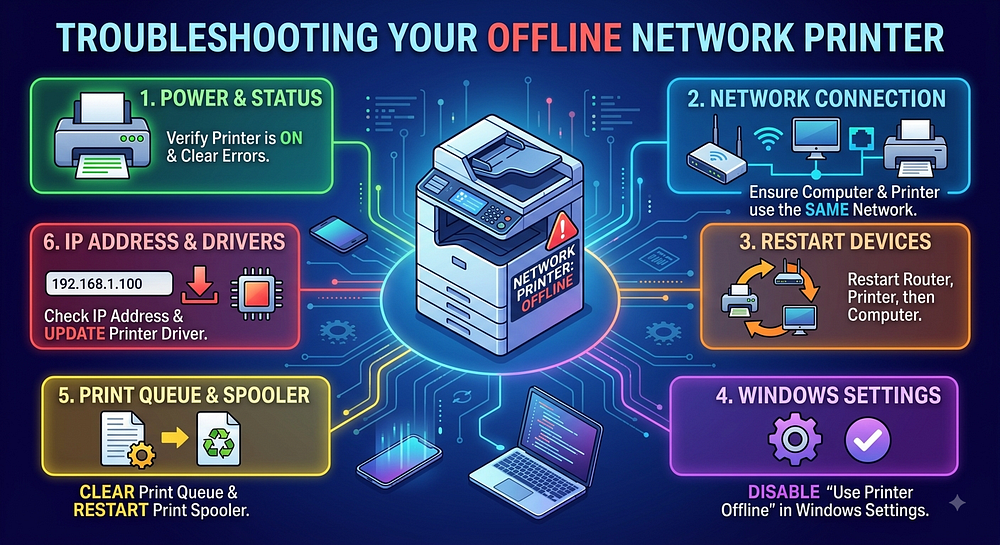
Start by checking the printer's status and network connection. Then restart the printer, router, and computer. Make sure Use Printer Offline is disabled, clear pending print jobs, and verify that the correct printer is selected.
If the issue continues, check the printer's IP address, update the printer driver and firmware, investigate the Wi-Fi signal, review firewall settings, and reinstall the printer when necessary.
Following these steps systematically can help bring a network printer back online and restore reliable printing without unnecessarily replacing the device.


Comments
Post a Comment