How to Find the WPS PIN on an HP Printer for Wireless Setup
Introduction
Connecting an HP printer to a wireless network allows you to print from computers, laptops, smartphones, and tablets without using cables. One of the easiest ways to establish this connection is through Wi-Fi Protected Setup (WPS). During the setup process, many users are prompted to enter a WPS PIN and become confused about where to locate it. Unlike a permanent password, the WPS PIN is usually generated only when it is needed and is designed to provide a secure way to connect the printer to your wireless router.
The location of the WPS PIN depends on your HP printer model. Some printers display it on the control panel, while others generate it during the wireless setup process. In certain cases, you can connect your printer using the WPS Push Button method, which eliminates the need to enter a PIN altogether. Understanding how the WPS feature works can save time and make printer installation much easier.
This guide explains where to find the WPS PIN on an HP printer, how to use it during setup, and what to do if the PIN does not appear.
What Is a WPS PIN?
WPS stands for Wi-Fi Protected Setup, a feature designed to simplify the process of connecting wireless devices to a Wi-Fi network.
The WPS PIN is a temporary security code generated by your HP printer during the wireless setup process. Instead of manually entering your Wi-Fi password, you simply enter the displayed PIN into your router or computer when prompted. This creates a secure wireless connection between the printer and your network.
Unlike your Wi-Fi password, the WPS PIN is not permanent. It is typically valid only for a short period, helping protect your wireless network from unauthorized access.
Where Can You Find the WPS PIN on an HP Printer?
The exact location depends on the printer model.
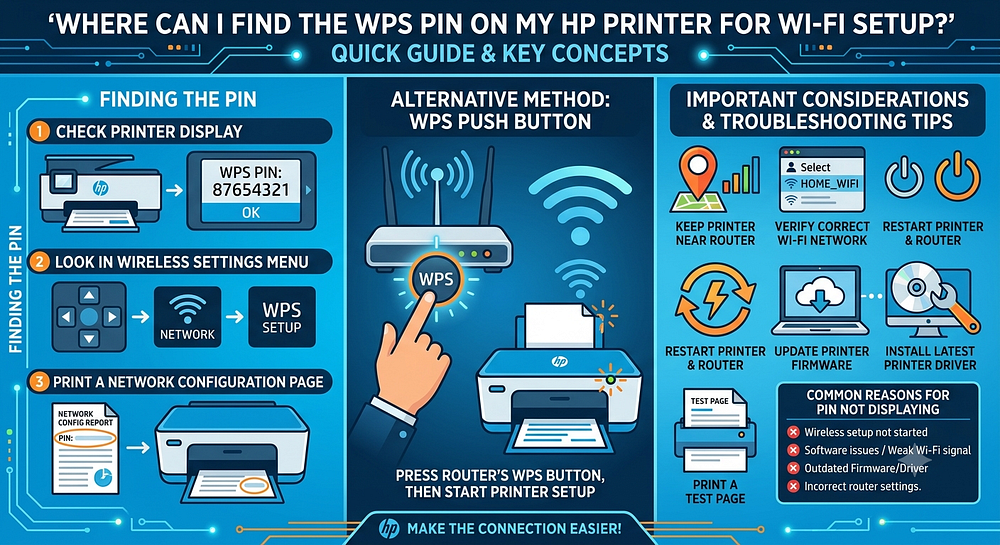
1. Check the Printer Display
Many HP printers with touchscreen displays generate the WPS PIN automatically.
To locate it:
Open Wireless Settings.
Select Wireless Setup Wizard or Wi-Fi Setup.
Choose the option to connect using WPS PIN.
The printer will display a temporary PIN.
Write the PIN down before it expires.
2. Open the Wireless Menu
Some HP printers include a dedicated wireless menu where you can generate a new WPS PIN.
Navigate to:
Network Settings
Wireless Settings
Wi-Fi Protected Setup (WPS)
The printer may provide the option to display or regenerate a new PIN.
3. Print a Network Configuration Page
Many HP printers allow users to print a Network Configuration Report.
This report can include:
Wireless status
IP address
MAC address
Connection information
Network details
Although every printer model is different, this report can help verify whether the printer is correctly configured for your wireless network.
Using the WPS Push Button Method
Many modern routers support the WPS Push Button method.
Instead of entering a PIN:
Press the WPS button on your wireless router.
Within two minutes, start the wireless setup on the printer.
Select Push Button if prompted.
Wait for the printer to establish the connection.
This method is quick and removes the need to type a WPS PIN.
Why the WPS PIN May Not Appear
Sometimes users cannot find the PIN because the printer has not yet started the wireless setup.
Other possible reasons include:
Wireless setup has not been initiated.
Temporary software glitches.
Printer firmware is outdated.
Incorrect network configuration.
Weak Wi-Fi signal.
Router communication problems.
Previous network settings stored in the printer.
Interrupted installation process.
Printer connected to another wireless network.
Driver compatibility issues.
Restarting both the printer and router often resolves temporary connection problems.
Troubleshooting WPS PIN Issues
If the WPS PIN is missing, try the following solutions.
Restart the Printer
Turn the printer off.
Wait approximately 30 seconds before turning it back on.
Restarting clears temporary communication errors.
Restart Your Router
Power off the wireless router.
Wait one minute.
Turn it back on.
After the network reconnects, begin the printer setup again.
Verify the Wireless Network
Ensure the printer is attempting to connect to the correct Wi-Fi network.
If multiple wireless networks are available, select the same network your computer or mobile device is using.
Move the Printer Closer
A weak wireless signal can interrupt setup.
Keep the printer close to the router until installation is complete.
Update Printer Firmware
Firmware updates often include:
Wireless improvements
Bug fixes
Better compatibility
Enhanced security
Keeping firmware current improves overall performance.
Install the Latest Printer Driver
Printer drivers allow your computer and printer to communicate properly.
Installing the latest driver helps:
Improve wireless communication
Resolve installation errors
Increase compatibility with newer operating systems
Best Practices for a Successful Wireless Setup
Following a few simple recommendations can make setup easier.
Keep the printer near the router.
Ensure the wireless network is working properly.
Use the latest printer firmware.
Install updated printer drivers.
Restart devices before setup if necessary.
Complete the setup without interruptions.
Verify your Wi-Fi password.
Print a test page after installation.
Keep your operating system updated.
Save your wireless settings for future reference.
These practices reduce the chances of connection failures.
Benefits of Connecting Your HP Printer Wirelessly
A wireless connection provides several advantages.
Print from Multiple Devices
Computers, laptops, tablets, and smartphones can all access the same printer.
Fewer Cables
Wireless printing reduces desk clutter and improves workspace organization.
Flexible Printer Placement
The printer no longer needs to remain beside your computer.
Easy Mobile Printing
Many HP printers support wireless printing from mobile devices, making printing convenient from almost anywhere within your network.
Convenient Sharing
Multiple family members or office employees can print without reconnecting cables.
Frequently Asked Questions
What is the WPS PIN on an HP printer?
The WPS PIN is a temporary security code generated during wireless setup to help connect the printer securely to a Wi-Fi network.
Is the WPS PIN printed on the printer?
Usually not. Most HP printers generate the PIN only when wireless setup begins.
Can I connect my HP printer without using a WPS PIN?
Yes. Many routers support the WPS Push Button method, and you can also complete setup using your wireless network credentials.
Why does the WPS PIN expire?
The PIN is temporary for security reasons and usually remains valid only during the setup process.
What should I do if the printer never shows a PIN?
Restart the printer, restart the router, verify the wireless settings, update firmware, and begin the setup process again.
Should I update the printer driver after connecting?
Yes. Updated drivers improve performance, compatibility, and communication between your printer and computer.
Conclusion
Finding the WPS PIN on an HP printer is generally straightforward once you know where to look. Most HP printers generate the PIN automatically during the wireless setup process and display it on the printer's control panel when needed. If your printer supports the WPS Push Button method, you may not need a PIN at all.
If the PIN does not appear, checking the wireless settings, printing a network configuration report, restarting the printer and router, updating firmware, and installing the latest printer driver can help resolve the issue. By following these steps and maintaining your printer with regular software updates, you can establish a secure wireless connection and enjoy reliable printing from all your connected devices. This approach makes HP printer setup easier while helping prevent common wireless connectivity problems in the future.


Comments
Post a Comment