How to Remove Viruses from Your Computer?
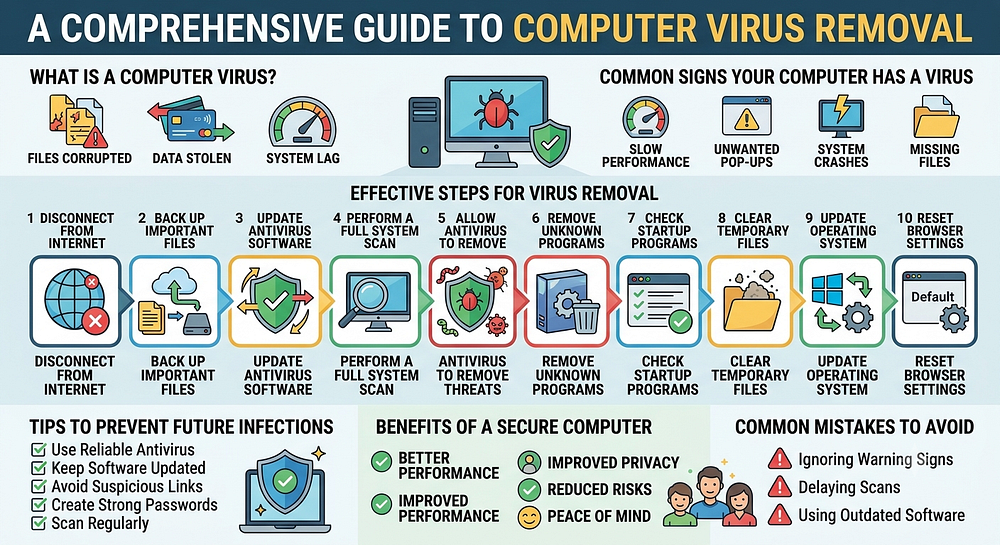
Computer viruses are among the most common cybersecurity threats faced by individuals and businesses. A virus can infect your device without warning, slow down performance, corrupt files, steal sensitive information, display unwanted advertisements, or even lock you out of important data. As cyber threats continue to evolve, understanding how to identify and remove viruses has become an essential skill for every computer user.
Many people assume that a virus infection means their computer is permanently damaged. Fortunately, this is rarely the case. Most viruses can be detected and removed with the right approach and proper security tools. Acting quickly when you notice unusual activity can help prevent further damage and protect your personal information.
What Is a Computer Virus?
A computer virus is a type of malicious software designed to spread from one file or program to another. Once activated, it can perform harmful actions on your device.
Viruses may:
Damage files.
Slow system performance.
Collect personal information.
Modify system settings.
Display unwanted messages.
Interfere with normal operations.
Create security vulnerabilities.
Some viruses are relatively harmless, while others can cause serious disruption.
Common Signs Your Computer Has a Virus
Recognizing the symptoms of a virus infection can help you respond quickly.
Some common warning signs include:
Slow computer performance.
Frequent system crashes.
Unexpected error messages.
Programs opening automatically.
Unwanted advertisements.
Changes to browser settings.
Missing or corrupted files.
Increased system activity.
Unusual pop-up windows.
Difficulty accessing certain applications.
If you notice several of these symptoms at the same time, a virus infection may be present.
Disconnect From the Internet
If you suspect a virus infection, disconnecting from the internet can be a useful first step.
This may help:
Prevent data transmission.
Stop malicious communication.
Reduce the spread of the infection.
Protect sensitive information.
Keeping the device isolated while investigating the problem can limit further damage.
Save Important Files
Before beginning the virus removal process, consider backing up important files.
Focus on:
Documents.
Photos.
Business records.
Personal files.
Project data.
Creating backups provides an additional layer of protection if recovery becomes necessary.
Run Antivirus Software
Antivirus software is one of the most effective tools for detecting and removing viruses.
A complete system scan can help identify:
Infected files.
Suspicious programs.
Malware components.
Potential security threats.
Allow the antivirus software to complete its scan and follow any recommended actions.
Update Security Software
Outdated security software may fail to recognize newer threats.
Before scanning your computer, ensure that your antivirus program has the latest threat definitions.
Updated security software improves detection capabilities and increases the likelihood of successful virus removal.
Perform a Full System Scan
A quick scan may overlook certain threats.
A full system scan examines all accessible areas of the computer, including:
Files.
Applications.
System folders.
Startup programs.
Temporary storage locations.
Although a complete scan may take longer, it provides more comprehensive results.
Remove Suspicious Programs
Viruses often arrive through unwanted or suspicious software.
Review installed programs and look for:
Unknown applications.
Recently installed software.
Programs you do not recognize.
Applications displaying unusual behavior.
Removing unnecessary software may help eliminate potential threats.
Check Startup Programs
Some viruses automatically launch when the computer starts.
Review startup applications and disable any programs that appear suspicious or unfamiliar.
Reducing unnecessary startup items can also improve overall system performance.
Clear Temporary Files
Temporary files can sometimes contain malicious content or remnants of malware.
Removing unnecessary temporary files helps:
Free storage space.
Improve performance.
Eliminate potential threats.
Simplify security scans.
Regular cleanup is a useful maintenance practice.
Update Your Operating System
Operating system updates often include important security improvements.
Installing updates helps:
Fix security vulnerabilities.
Improve system stability.
Enhance protection.
Reduce exposure to threats.
Keeping your operating system current is an essential part of computer security.
Reset Browser Settings
Many viruses target web browsers.
If your browser exhibits unusual behavior, consider reviewing and resetting settings such as:
Homepage preferences.
Search engine settings.
Extensions.
Notifications.
This may help remove unwanted changes introduced by malicious software.
Monitor Computer Performance
After removing a virus, continue monitoring your computer for unusual activity.
Watch for:
Unexpected slowdowns.
Pop-up advertisements.
New error messages.
Unknown programs.
Suspicious network activity.
Ongoing monitoring helps confirm that the threat has been eliminated.
Common Mistakes to Avoid
Many users unintentionally make virus infections worse.
Avoid these common mistakes:
Ignoring warning signs.
Delaying virus scans.
Downloading files from unknown sources.
Disabling security software.
Skipping updates.
Opening suspicious attachments.
Installing unverified programs.
Practicing caution helps reduce future risks.
Tips to Prevent Future Virus Infections
Prevention is always better than removal.
Helpful security practices include:
Install reliable antivirus software.
Keep software updated.
Use strong passwords.
Avoid suspicious downloads.
Be cautious with email attachments.
Regularly scan your computer.
Review security settings periodically.
These habits create a stronger defense against cyber threats.
Benefits of Maintaining a Secure Computer
A well-protected computer offers several advantages.
These include:
Better performance.
Improved privacy.
Reduced security risks.
Safer online activities.
Reliable access to files.
Greater peace of mind.
Maintaining security helps protect both personal and professional information.
Understanding Different Types of Malware
Viruses are only one category of malicious software.
Other threats include:
Spyware.
Ransomware.
Adware.
Trojans.
Worms.
Keyloggers.
Strong security practices help defend against a wide range of threats.
FAQs
How can I tell if my computer has a virus?
Common signs include slow performance, frequent crashes, unwanted pop-ups, unusual error messages, unknown programs, and changes to browser settings.
Can antivirus software remove all viruses?
Many viruses can be detected and removed by antivirus software, especially when the software is fully updated. However, some advanced threats may require additional troubleshooting.
Should I disconnect from the internet if I suspect a virus?
Yes. Disconnecting from the internet may help prevent the virus from communicating with external sources or spreading further.
Why is a full system scan important?
A full scan examines all accessible areas of the computer and is more likely to detect hidden threats than a quick scan.
Can outdated software increase virus risks?
Yes. Outdated operating systems and applications may contain security vulnerabilities that cybercriminals can exploit.
How can I prevent future virus infections?
Use reliable antivirus software, keep programs updated, avoid suspicious downloads, scan your system regularly, and practice safe online behavior.
Conclusion
Removing viruses from your computer is an important part of maintaining digital security and protecting valuable information. By identifying warning signs early, running comprehensive antivirus scans, updating security software, removing suspicious programs, and following safe computing practices, most virus infections can be resolved successfully.


Comments
Post a Comment