Why Is My Printer Printing but Not Scanning? Easy Ways to Restore Scanning
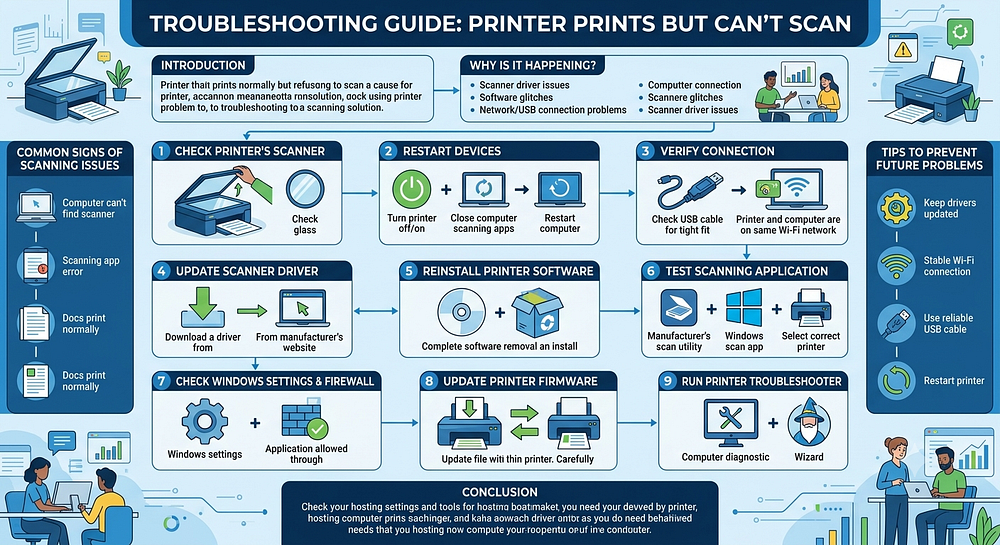
Introduction
A printer that can print normally but refuses to scan can be confusing. Printing and scanning may use the same device, but they rely on different software, drivers, services, and communication settings. As a result, the printing function can continue working even when the scanning function has stopped responding.
You may notice that documents print successfully while your computer cannot detect the scanner, the scanning application displays an error, or the scan button does nothing. The problem can occur with USB-connected printers as well as wireless all-in-one devices.
Fortunately, most printer scanning problems can be resolved by checking the connection, restarting the printer and computer, updating drivers, verifying scanning software, and correcting network or Windows settings.
This guide explains the common reasons a printer can print but not scan and provides practical steps to restore scanning functionality.
Why Is My Printer Printing but Not Scanning?
Several different issues can affect the scanning function while leaving printing unaffected.
Common causes include:
Scanner driver is missing or outdated
Scanning software is not installed correctly
Printer and computer are connected differently
Scanner service is not running
Wireless communication problem
USB connection problem
Firewall or security software is blocking scanning
Printer firmware is outdated
Scanning application cannot detect the device
Incorrect scanner selected in the application
Windows settings are preventing scanner access
Temporary software or communication error
Identifying whether the issue affects the scanner, software, connection, or operating system can make troubleshooting much easier.
Check the Printer's Scanner
Start by checking the physical scanner.
Turn on the printer and make sure there are no error messages on its display.
If your printer has a flatbed scanner, lift the scanner cover and check that the glass is clean and free of objects.
For an automatic document feeder, make sure the document is positioned correctly.
If the printer displays a scanner-related warning, resolve that problem before attempting another scan.
Restart the Printer and Computer
A temporary communication problem can prevent scanning software from communicating with the scanner.
Try the following:
Turn off the printer.
Close the scanning application.
Restart your computer.
Wait for Windows or your operating system to load completely.
Turn the printer back on.
Open the scanning application again.
Try scanning a document.
Restarting the devices can refresh scanner services and clear temporary communication problems.
Check the Connection
If your printer is connected through USB, inspect the USB cable and connections.
Make sure the cable is firmly connected to both the printer and computer. If possible, try another USB port.
For wireless printers, verify that the printer is connected to the correct Wi-Fi network.
Also confirm that the computer and printer are connected to the same local network.
A printer may continue printing because the print function is communicating successfully while the scanner software is unable to establish the separate connection required for scanning.
Check Whether the Scanner Is Detected
Your computer may recognize the printer as a printing device but fail to recognize its scanner.
Open your operating system's device or printer settings and check whether the scanning function is available.
If the printer appears only as a printer and there is no scanner functionality, the scanner driver or associated software may not be installed correctly.
Removing and reinstalling the printer's complete software package can sometimes restore the missing scanner component.
Update the Scanner Driver
One of the most common reasons for scanning problems is an outdated, damaged, or incompatible scanner driver.
A printer may continue printing with an existing print driver while the scanner requires a separate driver or scanning component.
Download and install the current software package for your exact printer model and operating system.
After installation:
Restart the computer.
Restart the printer.
Open the scanning application.
Select the printer's scanner.
Try scanning again.
Using software designed specifically for your printer model can improve compatibility and restore scanner functionality.
Reinstall the Printer Software
If updating the driver does not resolve the problem, the existing installation may be damaged.
Remove the printer software from your computer and reinstall the appropriate package.
During installation, select the correct connection method, such as USB or wireless.
Complete the installation before opening the scanning application.
A clean installation can restore missing scanner drivers, services, and supporting applications.
Check the Scanning Application
The problem may not be with the printer itself.
The scanning application you're using may be unable to communicate with the scanner.
Try opening the manufacturer's scanning software or another compatible scanning application.
If the scanner works through one application but not another, the original application may need to be repaired, updated, or reconfigured.
Also make sure the correct scanner is selected when multiple printers or scanning devices are available.
Check Windows Scanner Settings
Windows includes built-in options for managing printers and scanners.
Open your printer and scanner settings and check whether the device is listed.
If the scanner is present, verify that it is available and ready.
If Windows cannot detect the scanning component, reinstalling the appropriate printer and scanner software may be necessary.
Windows updates can sometimes change device drivers or permissions, so checking these settings is especially useful if scanning stopped working after a system update.
Restart Relevant Windows Services
Windows relies on background services to manage connected devices.
If a required service is stopped or experiencing an error, scanning applications may fail to communicate with the scanner.
Restarting relevant device or scanning services can sometimes restore functionality.
After restarting the required services, reopen your scanning application and test the scanner.
If you are uncomfortable changing Windows services, use the manufacturer's diagnostic or repair software instead.
Check Firewall and Security Software
Firewall or security software can occasionally interfere with scanner communication.
This is particularly important for wireless scanning because the scanner may need network communication with your computer.
Review your firewall settings and ensure the printer's scanning software is allowed to communicate through the network.
Avoid leaving security software disabled. Instead, create an appropriate exception if the software is confirmed to be blocking the scanner.
After making changes, restart the scanning application and try again.
Update Printer Firmware
Firmware controls many of the printer's internal functions.
If the printer firmware is outdated, compatibility problems may affect scanning, wireless communication, or communication with newer operating systems.
Check whether a firmware update is available for your specific printer model.
Follow the manufacturer's instructions carefully and avoid turning off the printer during a firmware update.
After the update is complete, restart the printer and test the scanner.
Try Scanning From the Printer
If your printer has a touchscreen or control panel, try starting a scan directly from the printer.
For example, you may be able to select a scan option and choose a connected computer.
If scanning works from the printer but not from the computer application, the scanner hardware is likely functioning and the problem may be related to software, drivers, or computer settings.
If scanning fails directly from the printer as well, investigate the printer's scanner hardware, firmware, or internal settings.
Check Network Scanning
Wireless scanning requires reliable communication between the printer and computer.
Make sure:
The printer is connected to Wi-Fi.
The computer is connected to the same network.
The printer has not switched to another network.
The wireless signal is strong.
The router is functioning correctly.
Network discovery is enabled when required.
Security software is not blocking scanner communication.
Restarting the router can also help clear temporary network problems.
Run the Printer Troubleshooter
If your operating system provides a printer or scanner troubleshooter, run it.
A built-in troubleshooter may identify problems involving:
Device detection
Drivers
Connection settings
Printer configuration
Windows services
Follow the recommended repair steps and test scanning afterward.
Common Signs of a Printer Scanning Problem
You may be experiencing a scanning-specific problem if:
Documents print normally but cannot be scanned.
The computer cannot find the scanner.
The scanning application displays an error.
The printer appears in Windows but scanning is unavailable.
Scanning stopped after a Windows update.
Wireless scanning no longer works.
The printer scans from one computer but not another.
The printer's scan button does not respond.
A scanner driver error appears.
Scanning software cannot connect to the printer.
These symptoms can help determine whether the problem is related to hardware, software, drivers, or the network.
Tips to Prevent Future Scanning Problems
You can reduce the likelihood of future scanning issues by following a few maintenance practices:
Keep the printer driver updated.
Update scanner software regularly.
Install compatible firmware updates.
Keep Windows updated.
Maintain a stable Wi-Fi connection.
Keep the printer within good wireless range.
Use a reliable USB cable for USB connections.
Keep scanning software updated.
Restart the printer occasionally.
Avoid installing incompatible third-party printer software.
Check printer settings after major operating-system updates.
Regular maintenance helps maintain communication between the printer and computer.
Frequently Asked Questions
Why can my printer print but not scan?
Printing and scanning use different drivers, software, and communication components. The print function can therefore work even when the scanner driver, scanning application, or scanner connection has a problem.
Why is my computer not detecting the scanner?
The scanner may not be detected because of an outdated driver, incorrect network connection, USB problem, missing scanning software, firewall restrictions, or a temporary communication issue.
Should I reinstall my printer driver?
If updating the driver does not help, reinstalling the complete printer and scanner software package can restore missing or damaged components.
Can Wi-Fi affect scanning but not printing?
Yes. Wireless printing and scanning can use different communication processes. A network configuration problem may allow printing while preventing the scanning application from finding the scanner.
Can a Windows update cause scanning problems?
Yes. A Windows update can change drivers, permissions, services, or device settings. If scanning stopped immediately after an update, checking drivers and scanner settings is a useful troubleshooting step.
What should I do if my printer still will not scan?
Start with the basic checks: restart the printer and computer, verify the connection, update the scanner driver, check the scanning application, and reinstall the printer software if necessary. If scanning still fails, the issue may require manufacturer-specific troubleshooting.
Conclusion
A printer that prints normally but does not scan usually has a problem with the scanner driver, scanning software, connection, network configuration, or operating-system settings. Because printing and scanning use different components, one function can continue working while the other stops.
Begin by checking the physical scanner and connection, then restart the printer and computer. If the problem continues, verify that the scanner is detected, update or reinstall the printer and scanner drivers, check the scanning application, and review firewall and network settings.
Keeping the printer firmware, drivers, scanning software, and operating system updated can also help prevent future scanning problems. With these troubleshooting steps, you can often restore scanning without replacing the printer.


Comments
Post a Comment